This is a one-time change. Once you set it, Plex will remember it for every video you watch in the browser.
How to set it up
- Open Plex Web in your browser and sign in.
-
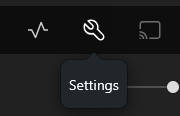
Click the wrench/settings icon () in the top-right corner of the player bar.
-
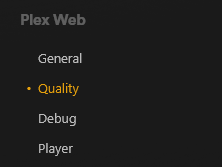
In the left sidebar under Plex Web, click Quality.
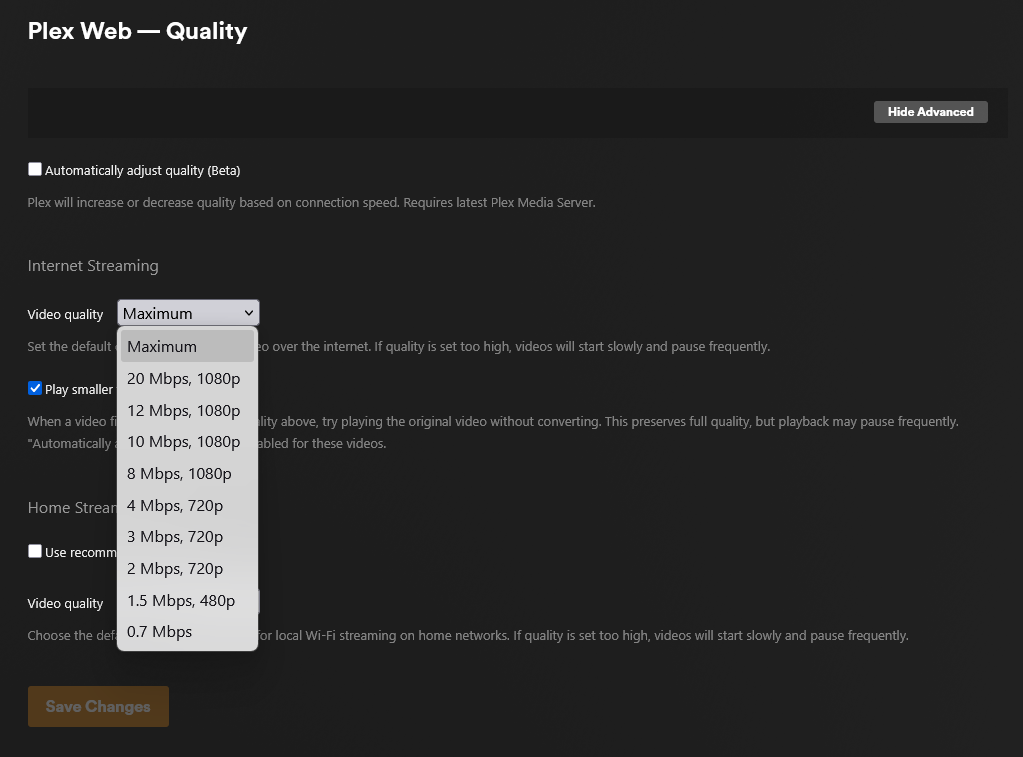
- Uncheck
Automatically adjust quality (Beta). - Under Internet Streaming, set Video quality to Maximum.
- Under Home Streaming, set Video quality to Maximum.
- Check
Play smaller videos at original quality. -
Click Save Changes.
-
In the left sidebar under Plex Web, click Debug.

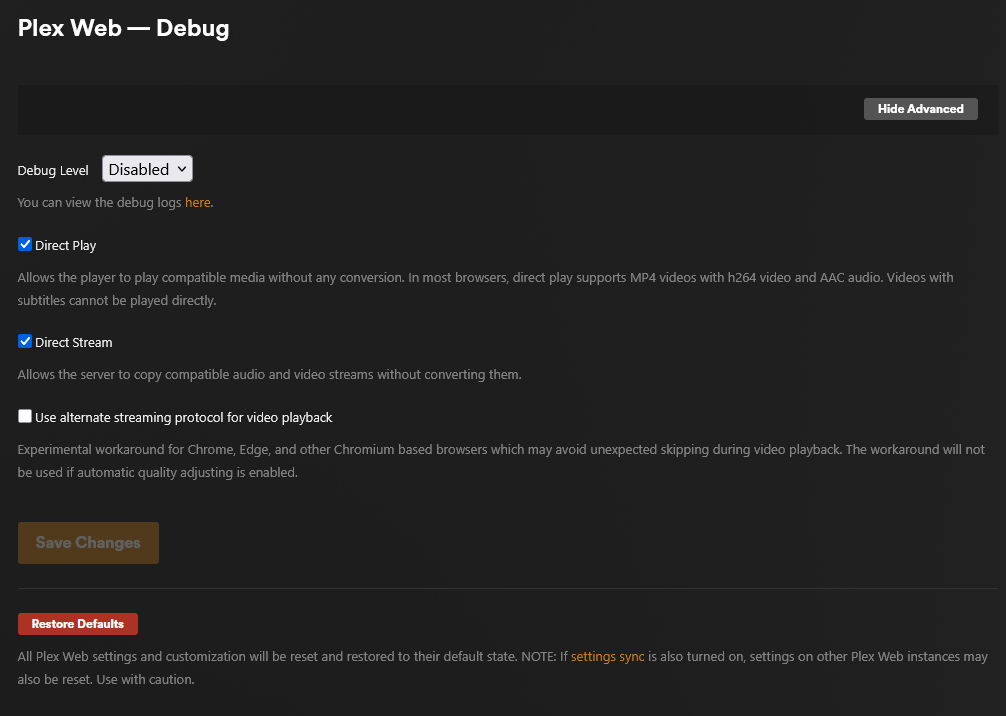
- Make sure
Direct Playis enabled. - Make sure
Direct Streamis enabled. - Click Save Changes.
Why does this help?
By default, Plex sometimes re-encodes video before sending it to your browser, which can lower the quality and cause buffering. Setting quality to Maximum or Original tells Plex to send the file as-is, which means better picture and smoother playback when your browser supports the format.
Still not working?
Browsers have varying codec support. If a file still won't direct play, try a different browser (Chrome and Edge tend to support the most formats). If the issue persists, let your Plex admin know.